Setup Guide 2026 · Application Usage

How to Use the Trinity Guard® App

Learn how a security guard logs in to the Trinity Guard® mobile app, changes the temporary password, starts a shift, opens an assigned patrol task, and views GPS checkpoints on the task map.

Application Usage is the final onboarding step. The administrator prepares the site, users, shifts, patrol tasks, checkpoints, and QR codes in the web dashboard. The guard then begins operational use from the Trinity Guard® mobile app.
Quick expert summary

The final onboarding step moves the system into real mobile use

Before a guard starts using the mobile app, an administrator should already have created the site, the guard account, the shift, and the assigned patrol task. GPS checkpoints or QR-code subtasks should also be configured where required.

The administrator provides the guard with the email address and temporary password created for the account. The guard signs in to the Trinity Guard® app and changes the temporary password before beginning operational work.

After login, the guard opens the My tasks screen and starts the assigned shift. Shift start requires deliberate confirmation and a press-and-hold action.

Once the shift is active, the assigned patrol task appears. The guard can open the task details, review the task description, and view the numbered GPS checkpoints on the map.

After the mobile application has been used successfully, the administrator can confirm that the final Application Usage onboarding step is complete.

  • Logging in with the guard account created by the administrator.
  • Changing the temporary password during the first login.
  • Confirming the password change with the old temporary password.
  • Opening the My tasks screen before the shift starts.
  • Confirming and holding the button to start the shift.
  • Viewing assigned patrol tasks inside the active shift.
  • Opening the patrol task and viewing GPS checkpoints on the map.
  • Confirming the final Application Usage onboarding step.
Workflow

The correct mobile application usage path

The mobile workflow begins only after the administrator has prepared the operational structure in the Trinity Guard® web dashboard.

The guard does not create the site, shift, patrol route, or GPS checkpoints from the mobile workflow shown here. The guard receives the prepared account and uses the app to perform the assigned work.

1 Log in to the app Enter the email address and temporary password supplied by the administrator.
2 Create a new password Enter the new password twice on the temporary-password screen.
3 Confirm the password change Enter the old temporary password and confirm the operation.
4 Open My tasks Review the screen that appears before the assigned shift is active.
5 Review the shift details Check the shift date, scheduled start time, and scheduled completion time.
6 Press and hold Yes Keep the confirmation button pressed until the shift-start action completes.
7 View the active patrol task The assigned patrol task appears under My tasks in active shift.
8 Open task details Review the patrol task description, status, start option, and checkpoints.
9 Confirm Application Usage Return to the onboarding panel and confirm the final step is complete.
Interactive walkthrough

How a guard starts using Trinity Guard®

Follow the real mobile workflow from the first login through shift start and patrol task access. The final screenshot confirms completion in the web onboarding panel.

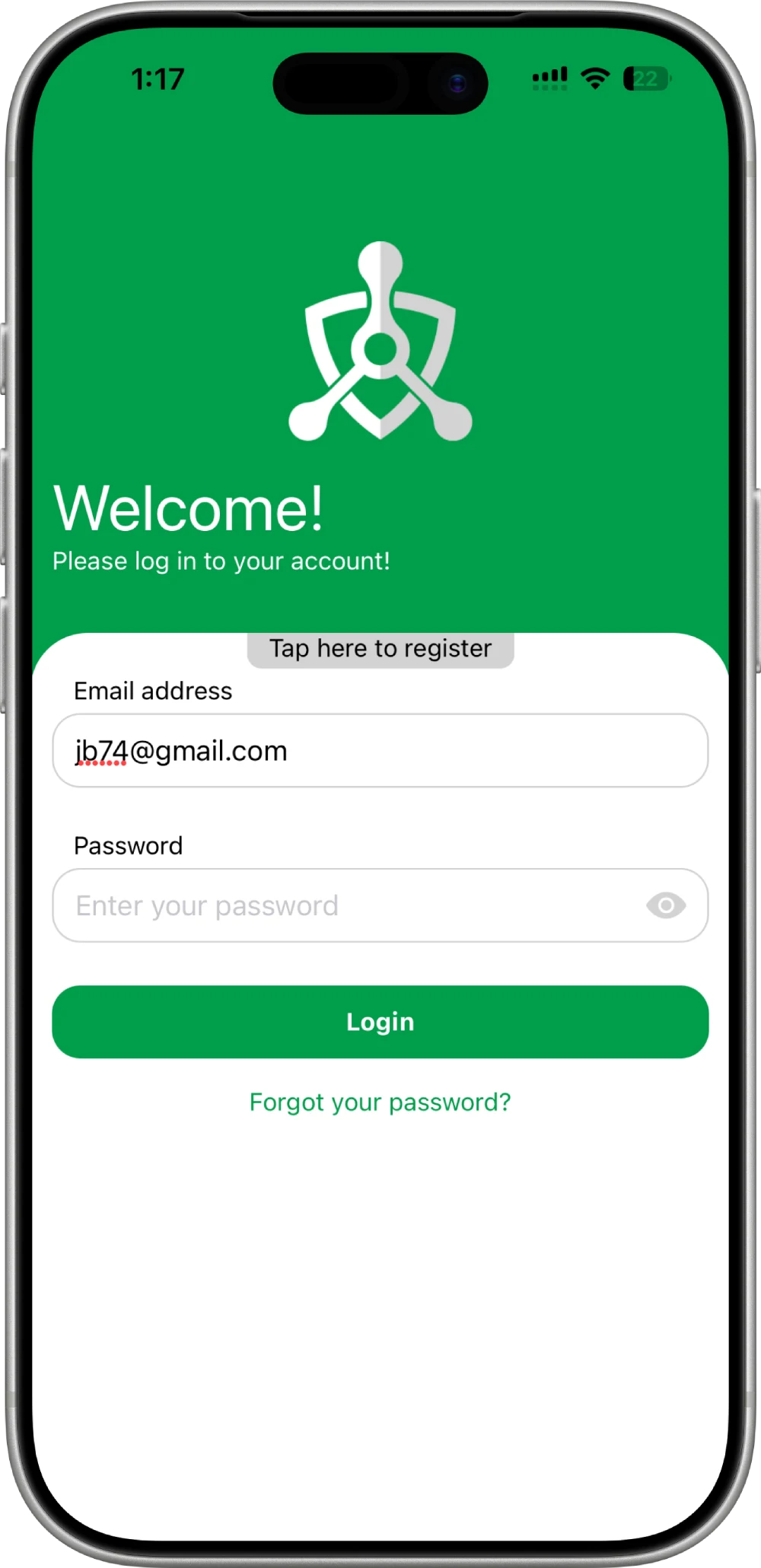
Trinity Guard mobile application login screen showing the email address and password fields

Step 1: Log in with the assigned guard account

Open the Trinity Guard® mobile app. Enter the email address and temporary password created for the guard by the administrator, then select Login.

Detailed guide

Log in, start the shift, and open the patrol task

The Application Usage step proves that the configuration created in the web dashboard can now be used by the assigned guard in the mobile app.

1

Log in with the guard account

Open the Trinity Guard® mobile application on the guard's mobile device.

Enter the email address assigned to the guard account.

Enter the temporary password created by the administrator.

Then select Login.

Each guard should use their own account. Shared login details make it harder to identify which user performed a shift, patrol task, checkpoint action, or incident report.

2

Change the temporary password

During the first login, Trinity Guard® asks the guard to replace the temporary password.

Enter the new password in the New password field.

Enter the same password again in the New password again field.

Then select Change password.

The two new password entries must match.

3

Confirm the password change with the old password

Trinity Guard® displays a confirmation window before the password is changed.

Enter the old temporary password in the Old password field.

Then confirm the operation with Yes.

This confirmation prevents the password from being changed accidentally by someone who does not know the current account password.

4

Open My tasks and start the shift

After login, open the My tasks screen.

Before the shift starts, the screen displays the I will start the shift button.

The guard should only start the shift after arriving at the workplace and becoming ready to begin work.

Select the shift-start button to open the confirmation window.

5

Review the scheduled shift times

The confirmation window shows the date, scheduled start time, and scheduled completion time of the shift.

Confirm that the displayed shift is the correct shift.

The operation cannot be undone through the same confirmation screen, so the guard should review the information before proceeding.

Select No to cancel or prepare to confirm with Yes.

6

Press and hold Yes to start the shift

Starting the shift requires a press-and-hold confirmation.

Place your finger on the Yes button and keep it pressed until the progress action completes.

A quick tap is not enough.

The long-press interaction helps prevent accidental shift starts.

7

View the patrol task in the active shift

After the shift starts, the assigned patrol task appears under My tasks in active shift.

In this example, the assigned task is:

NorthGate Logistics Patrol

The task card displays the planned start time, current task status, task description, and the task-start button.

Select Details to open the full patrol task information.

8

Review the GPS checkpoints on the task map

The patrol task screen displays the assigned GPS checkpoints on the map.

In this example, the NorthGate Logistics Patrol contains four numbered GPS checkpoints.

The checkpoint numbers on the map correspond to the point details listed below the task.

The guard should complete the patrol task according to the configured checkpoint and subtask requirements.

GPS-based checkpoint verification requires location services to be available on the mobile device.

9

Confirm the Application Usage onboarding step

After the guard has successfully logged in and started using the mobile application, return to the Trinity Guard® web dashboard.

Open the onboarding checklist.

Confirm that Application Usage appears with a green completion check.

This is the final step of the initial Trinity Guard® setup workflow.

Operational note: The mobile application should be tested with the same guard account, shift, patrol task, and checkpoints that will be used during the pilot. A successful login alone does not test the full operational workflow. The guard should also start the shift and open the assigned patrol task.
Atomic truths

Short operational rules for the mobile app

The administrator creates the guard account before mobile login.
Each guard should use an individual account.
The first login uses the temporary password created by the administrator.
The temporary password must be replaced with a new password.
The new password must be entered twice.
The old temporary password confirms the password change.
A guard should only start the shift after arriving at the workplace.
Shift start requires a press-and-hold confirmation.
Patrol tasks appear inside the active shift.
A patrol task can include GPS checkpoints, QR-code checks, and other subtasks.
GPS checkpoint verification requires location access on the mobile device.
The task map shows the checkpoints assigned by the administrator.
Application Usage is the final onboarding step.
Security isn't logged. It's proven.
If it isn't verified, it didn't happen.
Real patrols. Real data. Real proof.
Operational logic

Why mobile application testing completes the setup process

The web dashboard creates the operational structure, but the mobile application is where the guard performs the actual shift and patrol workflow.

A site can have users, shifts, checkpoints, QR codes, and tasks configured correctly, but the pilot is not operationally tested until a real guard account signs in and uses the prepared workflow.

The Application Usage step connects the administrative configuration to real field activity.

It confirms that the guard can access the account, replace the temporary password, start the correct shift, see the assigned task, and open the configured patrol route.

During a pilot, this step should be completed before expanding the system to additional guards, sites, shifts, or patrol routes.

Common mistakes

Common mobile app setup mistakes to avoid

  • Do not share one guard account between multiple guards. Individual accounts make user activity easier to identify and review.
  • Do not forget the temporary password. The guard needs it for the first login and for confirming the password change.
  • Do not enter two different new passwords. Both new password fields must contain the same value.
  • Do not start the shift before arriving at the workplace. Shift start should represent the real beginning of operational work.
  • Do not only tap the Yes button. Shift start requires the guard to press and hold the confirmation button.
  • Do not test with an unassigned task. Confirm that the task belongs to the correct guard and active shift.
  • Do not disable location access during GPS patrol testing. GPS checkpoint verification requires mobile location services.
  • Do not consider login alone a complete pilot test. The guard should also start the shift and open the assigned patrol task.
FAQ

Trinity Guard® mobile application questions

What is Application Usage in Trinity Guard®?

Application Usage is the final onboarding step in which a guard begins using the prepared Trinity Guard® account and operational workflow in the mobile app.

Who creates the guard's mobile login?

An administrator creates the guard account in the Trinity Guard® web dashboard and assigns the guard's email address, role, language, and temporary password.

Which login details does the guard use?

The guard uses the email address and temporary password supplied by the administrator.

Why must the temporary password be changed?

The temporary password is intended for initial access. Replacing it gives the guard a private password for future logins.

Why does the app ask for the old password?

The old temporary password confirms that the person changing the password already has access to the current account credentials.

How does a guard start a shift?

On the My tasks screen, the guard selects the shift-start action, reviews the displayed shift schedule, and then confirms the start.

Why must the Yes button be held down?

The press-and-hold confirmation reduces the risk of starting a shift accidentally with a quick tap.

When do the assigned patrol tasks appear?

Assigned patrol tasks appear under My tasks in active shift after the correct shift has been started.

What information is shown on the patrol task card?

The patrol task card can show the planned start time, current status, task name, task description, start control, and a Details button.

What does the patrol task map show?

The task map shows the GPS checkpoints assigned to the patrol route. The numbered markers correspond to the checkpoint details inside the task.

Does GPS checkpoint verification require location access?

Yes. The mobile device must allow the Trinity Guard® app to access location data when GPS-based checkpoint verification is required.

Does Trinity Guard® continuously track guards in the background?

No. Trinity Guard® does not rely on continuous background tracking. Location data is used for relevant patrol and checkpoint verification actions.

How do I know the Application Usage step is complete?

Open the onboarding checklist in the web dashboard. The Application Usage item should appear with a green completion check after the mobile workflow has been used successfully.

Setup complete

Your Trinity Guard® pilot is ready for real patrol testing

The initial onboarding process is complete when the administrator has prepared the system and a guard has successfully used the mobile application.

The correct final operational sequence is:

the administrator creates the guard account,
assigns the shift and patrol task,
the guard logs in with the temporary password,
changes the password,
starts the shift with press-and-hold confirmation,
and opens the assigned patrol task.

At this point, Trinity Guard® is no longer only configured. It is ready to be tested as a real guard tour and patrol verification system.

Start with one guard, one shift, and one clearly defined patrol task. Complete the full mobile workflow, review the recorded activity, and then expand the pilot.

Gyula Györfi, security technology expert and founder of Trinity Guard LLC
Gyula Györfi Security technology expert, veteran police commander, and founder of Trinity Guard LLC. This guide is based on the real Trinity Guard® Application Usage onboarding flow used by guards to log in, change their temporary password, start an assigned shift, and open GPS-based patrol tasks in the mobile app.